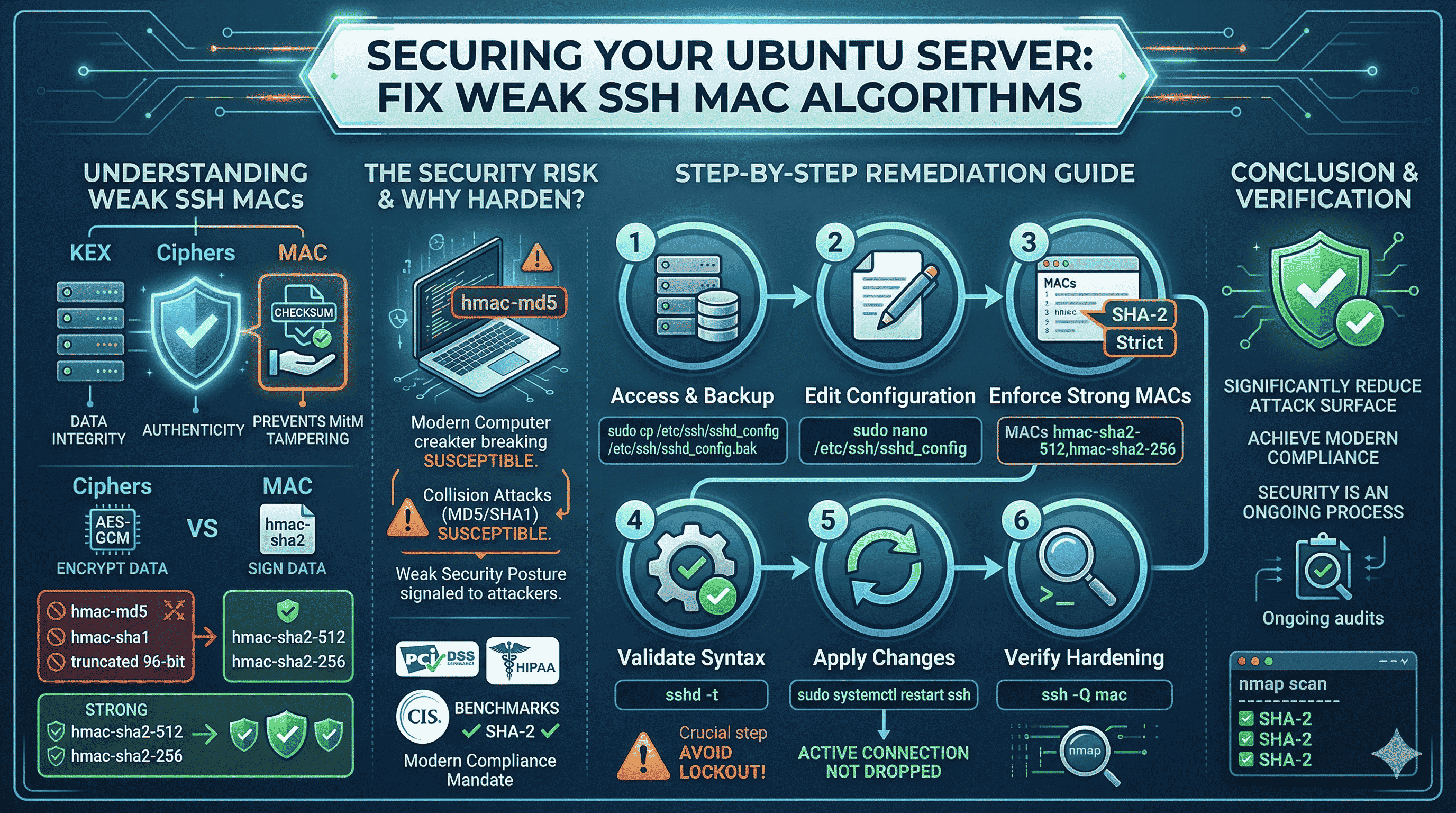
If you run a vulnerability scan (Nessus, OpenVAS, Qualys, or similar) against an Ubuntu server, you may see “SSH Weak Message Authentication Code (MAC) algorithms.” SSH is still the right tool for remote administration, but default sshd configs often keep legacy algorithms enabled for backward compatibility, which scanners and compliance frameworks (PCI-DSS, HIPAA, CIS benchmarks) increasingly reject.
This guide explains what MACs do in SSH, why weak MACs matter, and how to harden your Ubuntu sshd with a safe, reversible procedure: backup, edit, validate syntax, restart, verify.
Always keep a working root session or out-of-band console (cloud provider serial console, IPMI, etc.) before changing SSH config. A syntax error in sshd_config can lock you out if you restart without testing.
What SSH MAC algorithms do
An SSH session uses several cryptographic layers. Alongside key exchange (KEX) and ciphers (confidentiality), Message Authentication Codes (MACs) provide integrity and authenticity for each packet: they act like a cryptographic checksum so that tampering or corruption in transit is detectable, which matters against man-in-the-middle and noisy networks.
Ciphers protect secrecy; MACs help ensure the data you receive is exactly what the peer sent (within the threat model of the algorithm).
Why scanners flag “weak” MACs
Older MACs such as hmac-md5, hmac-sha1, and truncated 96-bit variants are deprecated for good reasons: attack research and compute power have reduced trust in legacy hash-based MACs for long-term use. Leaving them enabled advertises that the server will negotiate down to weaker options; many compliance baselines require SHA-2–based MACs such as hmac-sha2-256 and hmac-sha2-512.
Hardening MACs is one piece of a broader SSH crypto policy (you may also tune ciphers and KEX in separate directives; that is out of scope for this short note).
Step-by-step: enforce strong MACs on Ubuntu
1. Back up the configuration
sudo cp /etc/ssh/sshd_config /etc/ssh/sshd_config.bak
Keep the backup until you confirm new connections work after the change.
2. Edit sshd_config
sudo nano /etc/ssh/sshd_config
Use vim or another editor if you prefer.
3. Set a strict MACs line
Find an existing MACs line or add one at the end of the file:
MACs hmac-sha2-512,hmac-sha2-256
This list only allows SHA-2 MACs (order may matter for negotiation, and both are widely supported by modern clients).
In nano: Ctrl+O to save, Enter, Ctrl+X to exit.
4. Validate syntax (mandatory)
sudo sshd -t
No output usually means syntax is valid. If you see an error, fix the file before restarting.
5. Apply the change
sudo systemctl restart ssh
On many Ubuntu systems the service is ssh (or sshd depending on version). Restarting typically does not drop your current session, but new sessions must use the updated settings. Keep this window open until you test a second connection.
6. Verify from a client
On a modern machine, list MACs your client supports (OpenSSH):
ssh -Q mac
To see what the server advertises on port 22, you can use nmap (install if needed):
nmap -p 22 --script ssh2-enum-algos YOUR_SERVER_IP
Inspect the mac_algorithms section: you should see only the SHA-2 MACs you configured (plus any client/server overlap rules your versions expose).
Test a second SSH login from another terminal before closing your original session. If the client is too old and lacks SHA-2 MACs, upgrade the client or temporarily add a compatible MAC only after risk assessment. Do not re-enable weak MACs without a documented exception.
Ongoing hygiene
Cryptographic guidance changes. Revisit sshd settings when you upgrade OpenSSH, change compliance scope, or after major distribution upgrades. Automated scanning plus configuration management (Ansible, cloud-init, etc.) helps keep drift low.
Closing
Restricting SSH to strong MAC algorithms reduces negotiation risk and aligns hosts with modern baselines, without changing how you use SSH day to day, as long as you validate config, keep a safety path, and verify clients can still connect.